
 SMART SOLUTIONS FRAMEWORK
WORDPRESS MEDIA TOOLS
SSF Media Manager – Media Library Organizer & File Renaming (Pro)
Organise your WordPress media.
Build a clearer workflow.
Organize media into virtual collections, search and filter files, and edit attachment details with the free plugin. Add bulk file renaming and other advanced tools with the separate Pro add-on.
Pro starts at US$39 once. Every plan includes the same tools; choose one, five or twenty active sites. Pro requires the free plugin.
See exactly what Free and Pro include ↓ Play previewClose preview

Group without duplicating
Put the same original file in more than one collection.
Find and refine
Search titles and details, apply filters and edit attachment fields.
Keep familiar URLs
Collection changes leave the original upload and its URL in place.
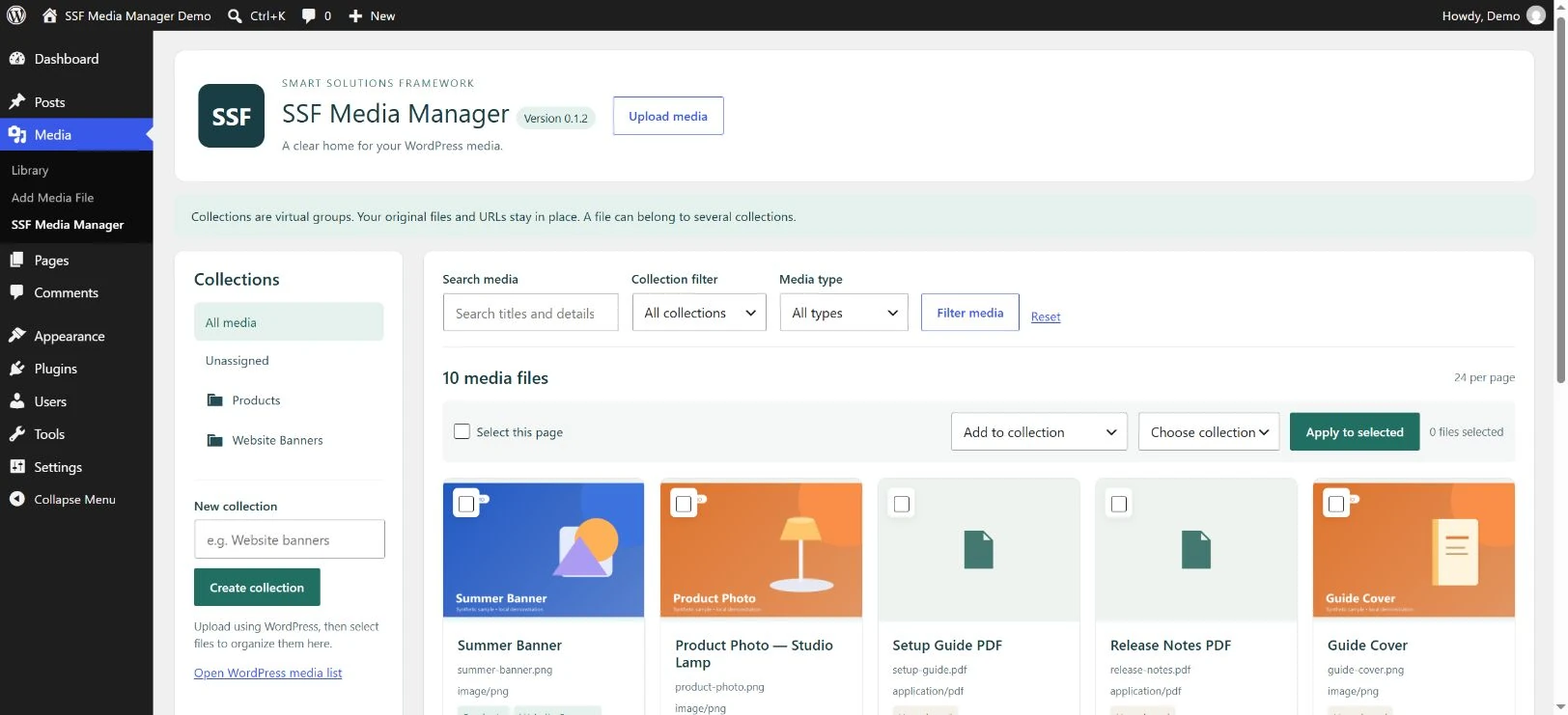
Everyday organisation · Free
A useful home for your uploads.
- Create and rename virtual collections.
- Add or remove selected media memberships.
- Filter by collection, unassigned media or media type.
- Edit attachment titles, captions, descriptions and image alt text.
These are attachment-record edits. Existing page blocks may retain their own saved captions or alt text. The free plugin does not rename or move files on disk. Pro’s separate filename-copy tool is explained below.
One original. Several collections.
Create and rename virtual groups, then add or remove selected memberships. The same attachment can belong to several collections.
Grouping preserves original bytes and URLs. Removing a membership does not delete the attachment.
Find the record you need.
Search attachment titles, captions and descriptions. Filter by collection, unassigned media, images, PDFs, audio or video.
A collection filter and column are also available in WordPress’s native media list. This is attachment search, not OCR or PDF-body search.
Refine attachment details.
Edit a title, plain-text caption or description, and image-only alternative text, one attachment at a time.
These edits do not change image pixels or rewrite existing page blocks. Blank alternative text can be intentional for a decorative image.
Free and Pro, clearly explained
Start with organisation.
Add control where you need it.
Free handles everyday grouping, finding and individual edits. Pro adds reviewed bulk tools and reusable workflows. Open any feature name for a short explanation.
| Feature · click to explore | Free 0.1.4 | With Pro 0.2.1 |
|---|---|---|
Virtual collections & multiple membershipsHow it worksGroup the same attachment in several collections without another upload. Full details ↓ | Included | Included |
Search & media filtersHow it worksFind attachment records using search, collections and media-type filters. Full details ↓ | Included | Included |
Individual attachment detailsHow it worksEdit one attachment’s title, image alt text, caption or description. Full details ↓ | Included | Included |
| — | 20 per administratorOn each site | |
Bulk details & blank-field reportHow it worksChoose the fields to change and review the proposed edits. Full details ↓ | — | 50 attachmentsPer preview |
Nested collectionsHow it worksPreview a collection’s parent using drag and drop or a form. Full details ↓ | — | IncludedVirtual structure |
Guarded change historyHow it worksUndo supported changes only while the recorded result still matches. Full details ↓ | — | 50 finished entriesPlus unresolved recovery |
Exact duplicate reviewHow it worksCompare eligible local originals by full hash and byte size. Full details ↓ | — | 5,000 attachmentsRead-only review |
Larger CSV jobsHow it worksValidate a membership plan, then continue explicit batches. Full details ↓ | — | 5,000 import rowsUp to 100 per step |
Classic membership CSVHow it worksPreview exact same-site membership additions and removals. Full details ↓ | — | 500 import rowsSeparate compact tool |
Bulk filename changesHow it worksUse new filenames while retaining old files for existing URLs. Full details ↓ | — | 20 attachmentsExtra copies retained |
Tool limits apply to individual operations, not your whole media library. Collection changes preserve original files and URLs. The separate filename-copy tool intentionally creates extra copies and changes the attachment’s current file metadata.
More control with Pro
Practical tools.
More deliberate media workflows.
Explore the workflow, limits and safeguards behind each tool. All Pro tools require administrator access and the free plugin.
Pro · Named saved views
Your useful filters, ready to reopen.
Save the media view you return to, with a name that makes sense to you.
20 views per administrator, per siteHow saved views work
Save a named combination of search, collection and media-type filters, then reopen it in the free media manager.
Up to 20 views per administrator on each site. A view remembers filters, not a separate set of files. Deleting a view does not delete media.
Pro · Bulk attachment details
Choose the fields. Review the changes.
Update selected attachment records together, with deliberate field selection and a preview.
50 attachments per previewHow bulk details work
Select up to 50 attachments and choose which titles, captions, descriptions or image-only alt fields to change. Use per-item values, or explicitly enable common values with per-item overrides.
- Only checked fields change. The administrator/site-bound preview lasts ten minutes and is single use; changed records invalidate it.
- The paginated blank-field report is a review aid, not an accessibility or SEO score. It shows up to 50 matching rows while scanning at most 100 IDs per request.
- Empty captions, descriptions and decorative-image alt text can be intentional. Existing page blocks may retain their own saved values.
Completed edits use the guarded change journal below.
Pro · Nested collections
Give your collections a structure.
Choose a parent for a collection using drag and drop or the accessible selection form.
Nesting screen: up to 1,000 collectionsHow collection nesting works
Drag a collection onto its proposed parent, or use the keyboard-friendly form. Preview the parent change before applying it. Cycles and stale previews are refused.
The library screen supports up to 1,000 collections. Nesting changes the collection’s parent; it does not create physical folders or move media files.
Free parent-collection views still show direct memberships, without automatically including files in child collections. Parent changes use guarded history.
Pro · Guarded change history
Review what changed. Undo with care.
Keep before-and-after records for supported tools, with checks against later changes.
50 finished shared entries, plus unresolved recoveryHow history and guarded undo work
Bulk attachment details, collection nesting and each completed larger CSV import batch record their before-and-after state in a local journal.
Guarded undo checks that the recorded result still matches and refuses to overwrite later changes. The last 50 finished entries are retained, along with unresolved recovery receipts.
This is bounded history, not a backup, and does not restore modification timestamps. Classic CSV is outside this journal. The filename-copy tool has its own receipt history.
Pro · Read-only exact duplicate review
Compare original bytes before deciding.
Review eligible local originals with the same full file hash and byte size.
5,000 attachments · 20 MiB per originalHow exact duplicate review works
Compare full SHA-256 hashes and file sizes for up to 5,000 matching attachments. Each original must be a regular, readable local upload no larger than 20 MiB. Continue explicit bounded steps of up to 20 items / 32 MiB.
Paginated scan reports expire after one hour. Unsafe, missing, linked, oversized or remote-only originals are skipped and reported. A safe retained local original can be compared even if its delivery URL points elsewhere; remote bytes are not fetched.
No automatic deletion, merging, thumbnail comparison or visual-similarity matching. Skipped, unscanned or changed files do not establish a clean result.
Pro · Larger membership CSV jobs
Handle larger plans in visible steps.
Validate the whole membership plan, then explicitly continue bounded import or export steps.
5,000 import rows / 2 MiB · 100-row stepsHow larger CSV jobs work
Validate an entire same-site import of up to 5,000 data rows / 2 MiB before the first write. Continue explicitly in batches of up to 100 rows. Existing attachments and collections are required; membership rows use exact site, attachment ID, original URL and collection slug.
Exports use chosen ceilings up to 5,000 matching files and 5,000 membership rows, reading up to 100 files per step. A file in two collections contributes two membership rows. Download the export after completion.
- Nothing runs automatically in the background. Cancellation retains completed batches; the whole job is not an atomic transaction.
- Each completed import batch has its own guarded history entry while retained.
- Up to five jobs per administrator. Reports and unfinished access expire after one hour; applied changes remain.
CSV changes memberships only. It does not upload media, create collections, edit metadata or migrate a library between sites.
Pro · Classic membership CSV
Keep compact membership batches simple.
Export current memberships, then preview exact same-site additions and removals.
500 import rows / 256 KiB UTF-8How classic CSV works
Export up to 500 matching files and 500 membership rows. Preview and apply up to 500 add/remove data rows from a UTF-8 CSV up to 256 KiB.
Use existing attachments and collection slugs with exact current-site IDs and original URLs. A file in two collections uses two membership rows. Administrator-bound previews expire after ten minutes and are consumed on apply.
This compact tool is separate from larger CSV jobs and remains outside the shared change journal. Imports do not upload files, create collections, edit metadata or migrate a media library. Keep backups before bulk changes.
Pro · Bulk filename changes
Rename in bulk. Retain the old URLs.
Create verified renamed copies and update attachment file metadata while keeping old files.
20 attachments · 200 related files · 256 MiB extraHow filenames and retained copies work
Preview new filename stems using {name}, {id} and {n}. Create verified copies of originals and referenced generated-size and backup files, then repoint attachment file metadata.
Review up to 20 attachments, 200 related files and 256 MiB of extra copies per operation. The single-use preview expires after ten minutes. Ordinary safe local uploads only; remote, offloaded and filtered URLs are rejected.
- Old files and URLs remain. Attachment GUIDs, page/post content, titles, alt text and memberships are not rewritten.
- Extra disk usage remains. Existing blocks may keep using retained old URL copies.
- A separate history keeps the last 20 finished receipts plus unresolved recovery. Guarded undo restores matching file metadata only; the new copies also remain.
No automatic file deletion or cleanup. Review free disk space and keep a backup first.
Learn the workflow
Start with Free.
Explore more with Pro.
Choose the guide that matches the task in your WordPress media library.
Everyday media organisation
Follow virtual collections, multiple memberships, search and individual attachment details using the free plugin.
Watch the Free playlist
Reviewed Pro workflows
Watch Pro in action, starting with bulk attachment details: choose fields, preview changes and check the saved result.
Watch the Pro playlistThe Free guides below demonstrate SSF Media Manager 0.1.2. Pro demonstrations use the separate add-on and show the feature covered in each lesson. Playlists open on YouTube.
See it in action
Video tutorials
Watch real examples of collections, attachment details and everyday media work. These guides demonstrate the free 0.1.2 plugin; Pro workflows are described separately above.
Play previewClose preview
Tutorial
Organise your WordPress media library
Follow virtual collections, multiple memberships, search and attachment details.
Watch on YouTube ↗ Play previewClose preview
Tutorial
Alt text, titles and captions
Edit attachment fields, save the record and understand the difference from existing page blocks.
Watch on YouTube ↗ Play previewClose preview
Tutorial
Manage collection memberships
Rename a collection and remove one membership while retaining the others.
Watch on YouTube ↗Quick demos
Short, focused examples you can follow.
 Play previewClose preview
Quick demo
Organise without moving files
See virtual collection assignment while the original uploads stay in place.
Watch on YouTube ↗ Play previewClose preview
Quick demo
One image, multiple collections
Give an existing attachment another collection membership without another upload.
Watch on YouTube ↗ Play previewClose preview
Quick demo
Find media and edit details
Follow search and filter controls into the attachment details form.
Watch on YouTube ↗Open “Play preview” to watch here, or use the direct YouTube link. Video previews are hosted by YouTube.
Choose your starting point
Free for everyday work.
One Pro toolkit. Your site plan.
Start with the free plugin, then choose the number of active installations you need. Every Pro plan has the same features and per-site tool limits.
Your everyday media organiser.
Free virtual collections, search and individual attachment details.
- Virtual collections
- Multiple memberships
- Search and media filters
- Individual attachment edits
- Native media-list filter
- Collection changes keep URLs
SSF Media Manager Pro · 0.2.1
SSF Media Manager Pro – Media Library Organizer & Bulk File Renaming
One payment. One year of updates and support. No automatic renewal.
- Named saved views
- Bulk details and blank-field report
- Nested virtual collections
- Guarded change history
- Read-only exact duplicate review
- Larger membership CSV jobs
- Classic membership CSV
- Bulk filename changes with old URLs retained
Pro · 1 site
US$39 one payment
One active WordPress installation.
Pro · 5 sites
US$99 one payment
Up to five active WordPress installations.
Pro · 20 sites
US$199 one payment
Up to twenty active WordPress installations.
One shared year starts at order/licence creation, before activation. Adding a site later does not restart it. Requires the separate free plugin on each installation. Plans cover separate WordPress installations; network-wide multisite is outside the verified scope.
Installed Pro continues after the year on its previously activated, recognised sites. Periodic online licence checks still apply. A successful check is cached for up to one hour; a due or explicit failed check blocks Pro until a successful retry, with no offline grace. A new activation or site move after expiry needs a current renewal key.
Released updates are supplied manually after eligibility verification; no automatic updater or guaranteed release schedule. Applicable tax and the final total appear at checkout. Read the complete product terms, including support and refunds.
Another way to get Pro
SSF Media Manager Pro on Codester
Choose the Codester edition for readable GPL source with no activation key, domain lock or remote licence validation. Install the Free plugin first.
Purchases, downloads, 12 months of item support and published maintenance releases for this edition are handled through Codester. Updates are installed manually. Review the edition’s licence, support scope and final checkout price on its listing.
SSF sells this product and may earn a referral commission on eligible Codester purchases. The direct-store site plans and their existing links above remain available.
Before you begin
Setup, licensing
and useful details.
Know what is included, how to install it and what to expect after purchase.
Read the complete Pro terms ↗Does organising media move or duplicate my files?
Collections are virtual groups. A file can belong to multiple collections without creating another upload. Collection changes, nesting and Pro membership imports leave the original file and URL in place.
Pro’s separate filename-copy tool creates extra files and changes the attachment’s current file metadata. It retains old originals and related files for existing URLs, while keeping the renamed copies after undo. It does not rewrite page/post content or the attachment GUID.
Editing attachment details changes the selected attachment record. Existing page blocks may still need separate caption or alt-text updates.
How do I install and activate Pro?
- Install and activate free SSF Media Manager 0.1.2 or later.
- Install the purchased Pro ZIP as a second WordPress plugin.
- Open Settings > SSF Media Manager Pro, review the data notice, consent and activate your key.
- Open Media and choose the relevant SSF Media Manager Pro tool, such as bulk details, collection library or larger CSV jobs.
Which site plan should I choose?
Choose one active site for US$39, up to five active sites for US$99, or up to twenty active sites for US$199. All Pro plans include the same features and per-site tool limits, one year of updates and support from order/licence creation, and no automatic renewal.
Install the free plugin and the Pro add-on separately on each WordPress site, then activate the purchased key on that installation within the plan’s active-site limit. A five- or twenty-site plan covers separate installations; it does not promise WordPress network-wide multisite support.
What happens after the year, and how are updates delivered?
- One payment: US$39 for one active site, US$99 for up to five active sites, or US$199 for up to twenty active sites. No subscription or automatic renewal.
- The year starts at order/licence creation, before activation. Delaying activation does not extend it.
- Installed Pro continues after the term on each previously activated, recognised site. Renewal is optional for updates/support.
- A new site activation or site move after expiry needs a current key from a deliberate renewal.
- Released updates are delivered manually after eligibility verification. No automatic updater or guaranteed release schedule.
A successful licence check is cached for up to one hour. A due or explicit failed network/validation check blocks Pro until a successful Check licence retry. There is no offline grace period.
What are the CSV, compatibility and licensing limits?
- Export all existing memberships of files matching your chosen filters.
- Use explicit add/remove rows for exact current-site attachment IDs, original URLs and existing collection slugs.
- Preview every row before applying it. Invalid rows and changed records are rejected.
- Change only specified memberships while retaining other memberships, metadata, original files and URLs.
Classic CSV: export up to 500 matching files and 500 membership rows; import up to 500 data rows / 256 KiB UTF-8 CSV. Previews belong to the current administrator, expire after ten minutes and are consumed on apply. The classic tool is outside the new 50-entry change journal.
Separate larger CSV jobs: import up to 5,000 data rows / 2 MiB, validating the whole plan before the first write. Apply explicitly in steps of up to 100 rows. Exports use administrator-chosen ceilings up to 5,000 files and 5,000 membership rows, reading up to 100 files per step. Cancellation retains completed batches. Each completed import batch has its own guarded history entry; job reports expire after one hour. Nothing runs automatically in the background, and the entire job is not an atomic transaction.
Administrator-only Pro tools. Requires WordPress 6.4+, PHP 8.1+ and the separate free SSF Media Manager 0.1.2 or later. Plans cover separate WordPress installations; network-wide multisite is outside the verified scope. Compatibility checks used MariaDB 11.8.9; other database/runtime combinations and large-library performance are outside the established scope. Keep backups and test bulk changes on staging.
Pro’s CSV tool changes collection memberships on the same site. It does not create collections, upload media, migrate sites, edit attachment metadata, compress media or move/delete files. A failed write attempts membership recovery and reports failures. Use backups and staging before bulk changes.
Code is GPLv2-or-later; the commercial activation/update/support service does not remove GPL copying, modification or redistribution rights.
With administrator consent, activation sends the key and hashed site label to Lemon Squeezy; later checks use the saved instance. No media contents or CSV files are sent by those licensing requests. Read the privacy policy and product terms.
What support and refunds are included?
Email support@ssfllc.com for installation, activation and reproducible product defects during the eligible year. Initial response target: two business days, Monday–Friday; no SLA or guaranteed resolution time.
Request a full first-purchase refund within 14 calendar days with the order number and purchase email. No explanation is required. Mandatory rights and Lemon Squeezy refund discretion remain available. Read the refund policy.
Need help choosing or getting started?
Ask about installation, activation or the right workflow for your media.
General enquiry form
For plugin questions, choose “General enquiry”. You can also email support@ssfllc.com. Do not include passwords, licence keys, payment-card details or verification codes.
Smart Solutions Framework · SSF Media Manager
Explore Pro workflows
Follow the separate Pro add-on step by step, with reviewed actions and practical limits. Pro requires the Free plugin.
PRO TUTORIAL
Bulk attachment details
Choose title, caption and alt-text changes, review the preview, then check the saved result. Unchecked fields remain unchanged.
Watch on YouTube ↗
PRO TUTORIAL
Saved filter views
Save a named search, collection and media-type filter preset for the current administrator on this site, then reopen it without making media copies.
Watch on YouTube ↗
PRO TUTORIAL
Nested collections
Organise virtual collections beneath a parent and check direct memberships. This changes the hierarchy without moving the original files.
Watch on YouTube ↗
PRO TUTORIAL
Exact-duplicate review
Inspect uploads whose retained local originals have identical bytes. The scan supports manual review; it does not automatically delete files or find visual similarities.
Watch on YouTube ↗
PRO TUTORIAL
Collection membership CSV
Preview supported add/remove membership rows for existing attachments, then check the saved result. This is a same-site membership workflow.
Watch on YouTube ↗
PRO TUTORIAL
Larger CSV jobs
Validate a collection-membership plan and explicitly apply it in reviewable batches, with progress and row results.
Watch on YouTube ↗
PRO TUTORIAL
File renaming with old URL copies
Preview new filenames, create verified copies and retain the old URL files. Copies use additional disk space; page content is not rewritten.
Watch on YouTube ↗
PRO TUTORIAL
History and guarded undo
Review a completed operation and restore recorded fields when the current state still matches. Later changes can block undo.
Watch on YouTube ↗Quick Pro guides
Focused walkthroughs for one media-library task at a time.
PRO SHORT
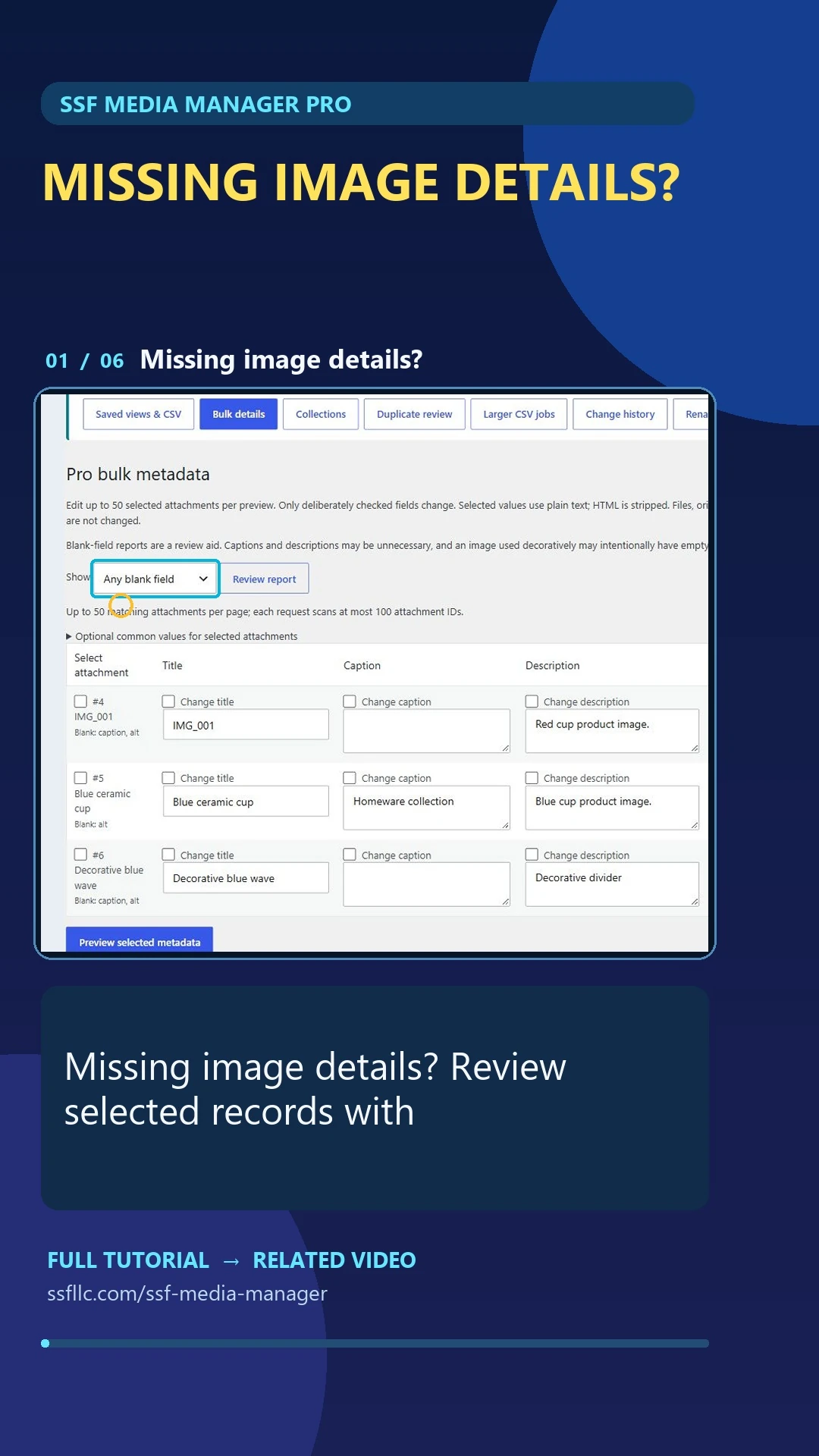
Bulk attachment details — Short
Choose title, caption and alt-text changes, review the preview, then check the saved result. Unchecked fields remain unchanged.
Watch on YouTube ↗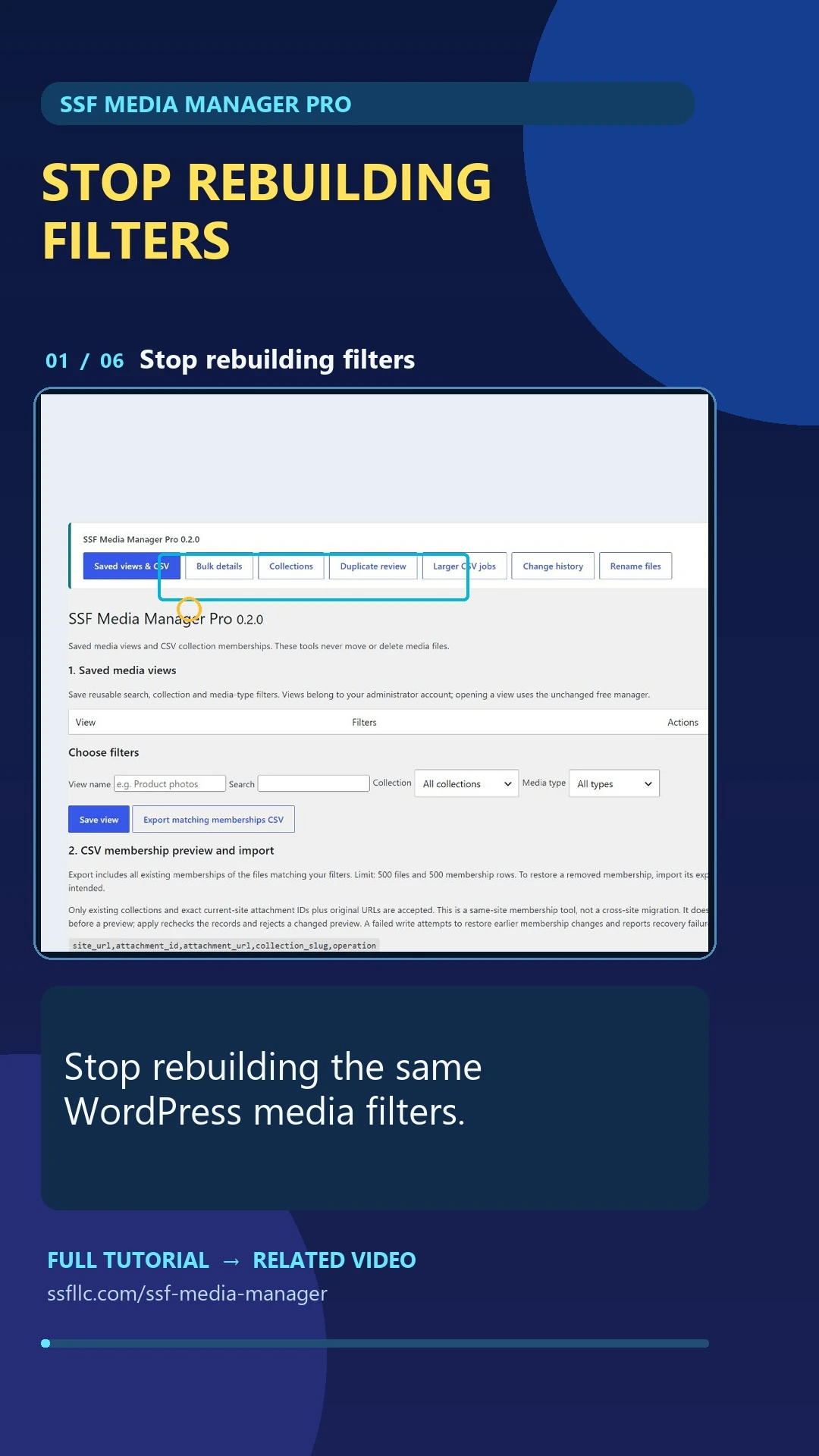
PRO SHORT
Saved filter views — Short
Save a named search, collection and media-type filter preset for the current administrator on this site, then reopen it without making media copies.
Watch on YouTube ↗Watch this Short on Facebook ↗
PRO SHORT
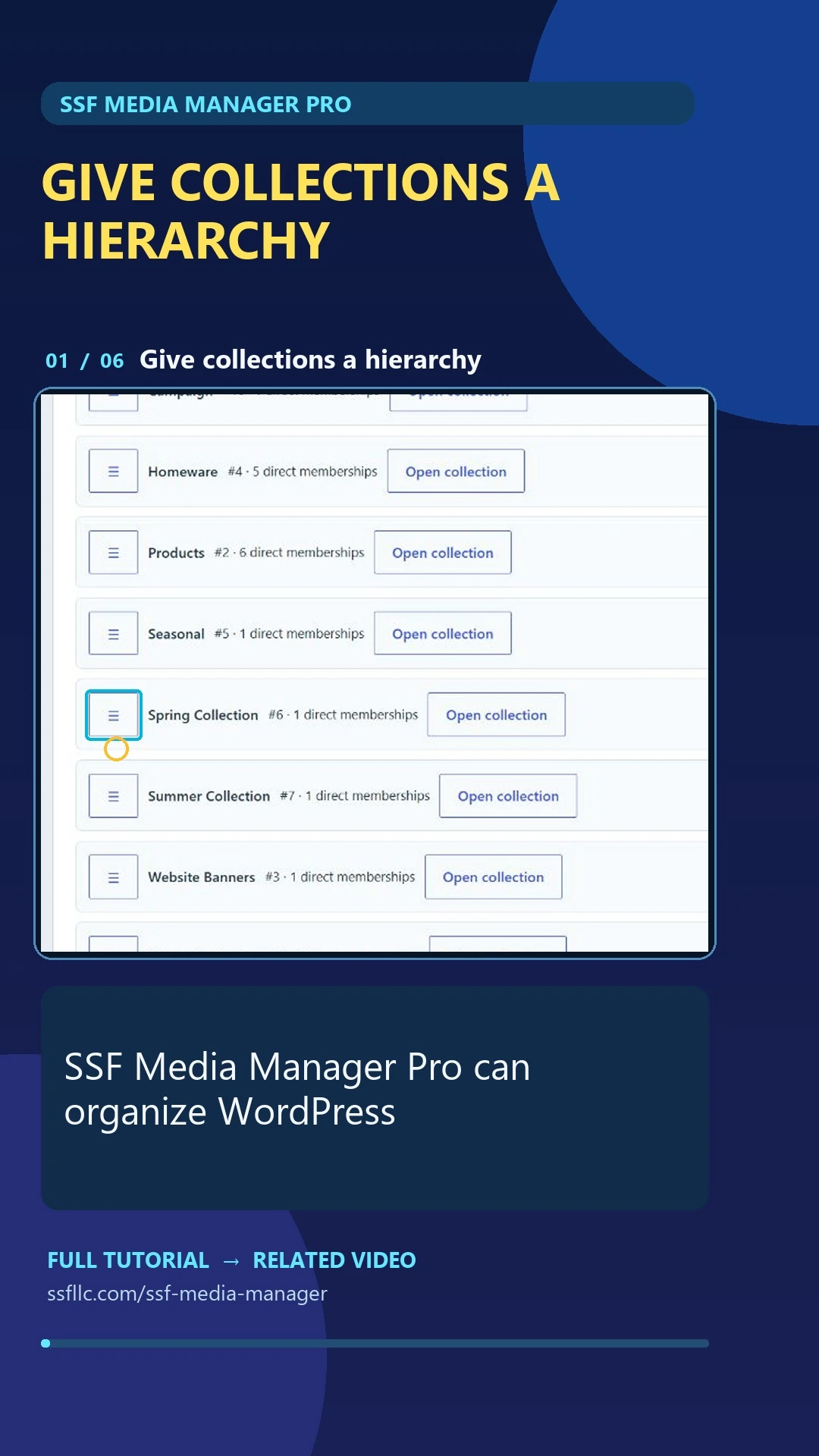
Nested collections — Short
Organise virtual collections beneath a parent and check direct memberships. This changes the hierarchy without moving the original files.
Watch on YouTube ↗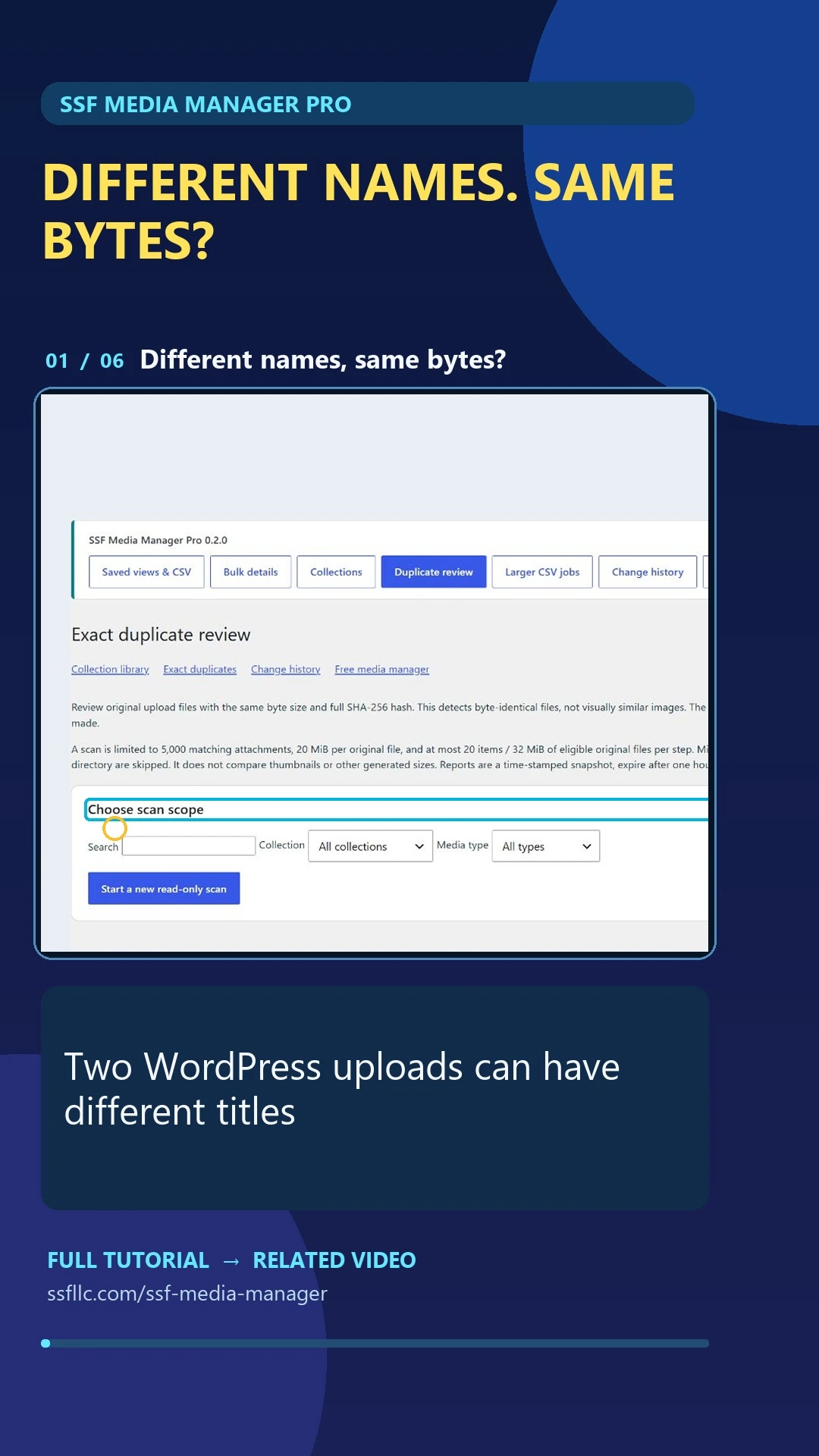
PRO SHORT
Exact-duplicate review — Short
Inspect uploads whose retained local originals have identical bytes. The scan supports manual review; it does not automatically delete files or find visual similarities.
Watch on YouTube ↗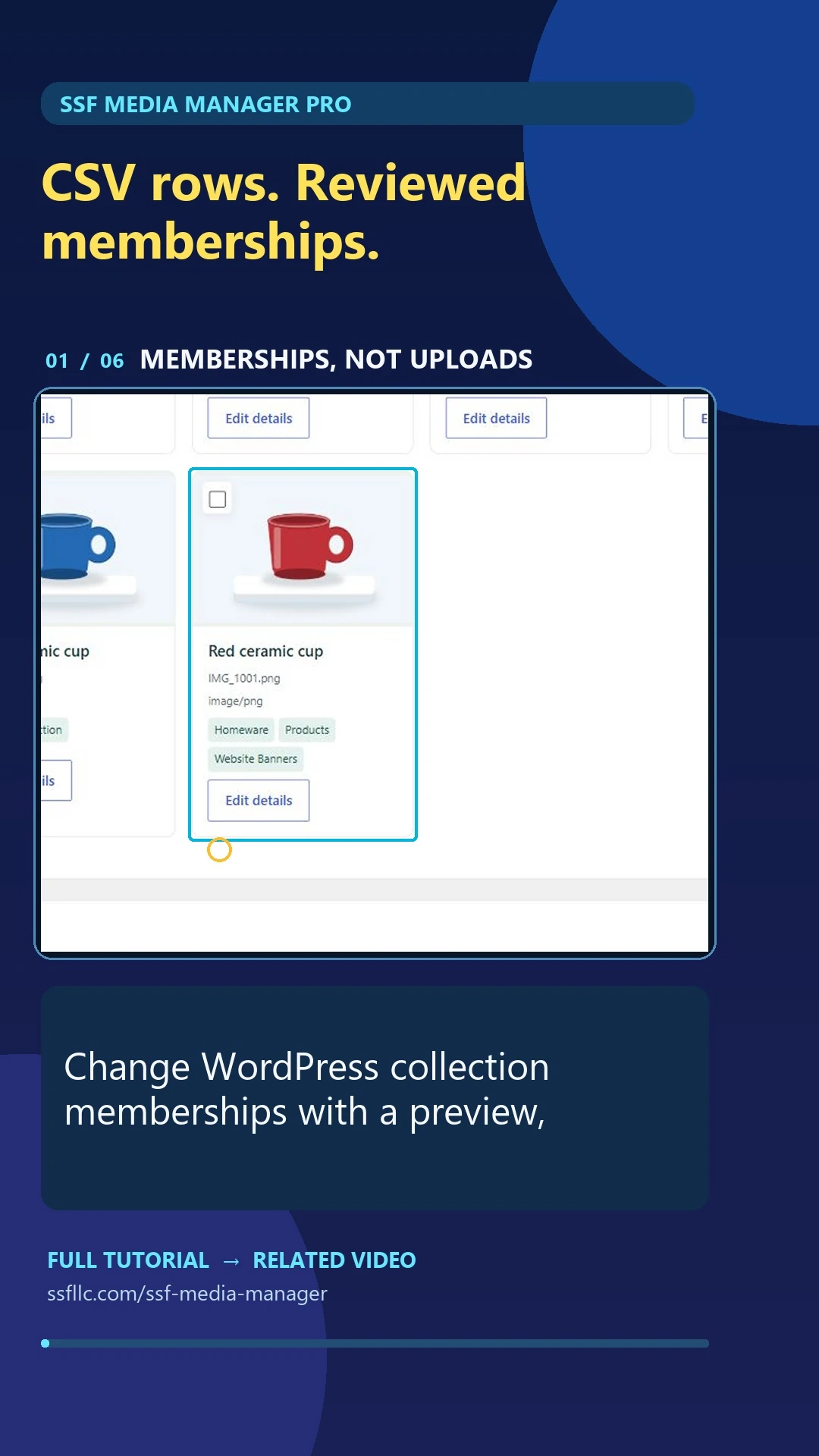
PRO SHORT
Collection membership CSV — Short
Preview supported add/remove membership rows for existing attachments, then check the saved result. This is a same-site membership workflow.
Watch on YouTube ↗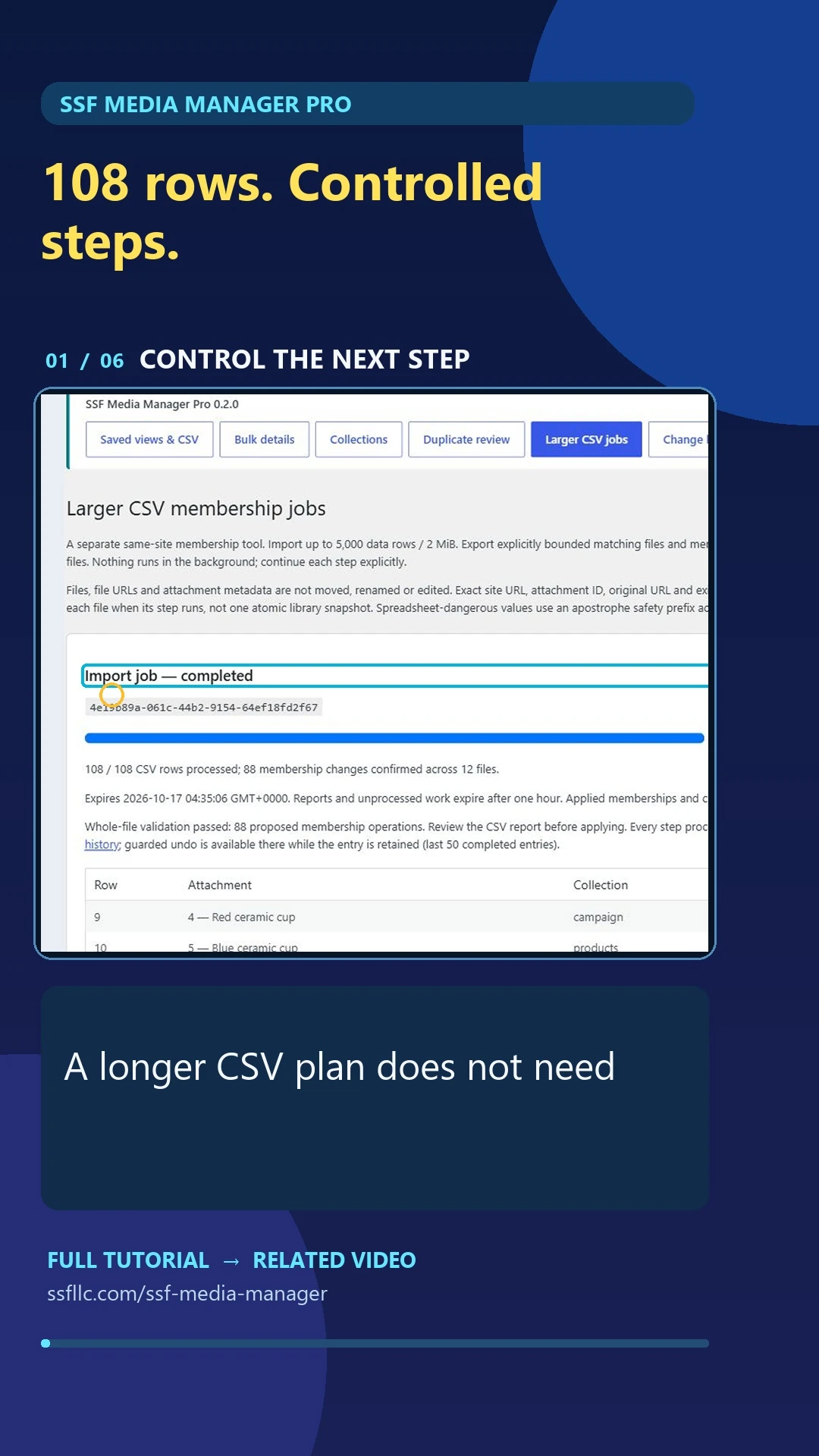
PRO SHORT
Larger CSV jobs — Short
Validate a collection-membership plan and explicitly apply it in reviewable batches, with progress and row results.
Watch on YouTube ↗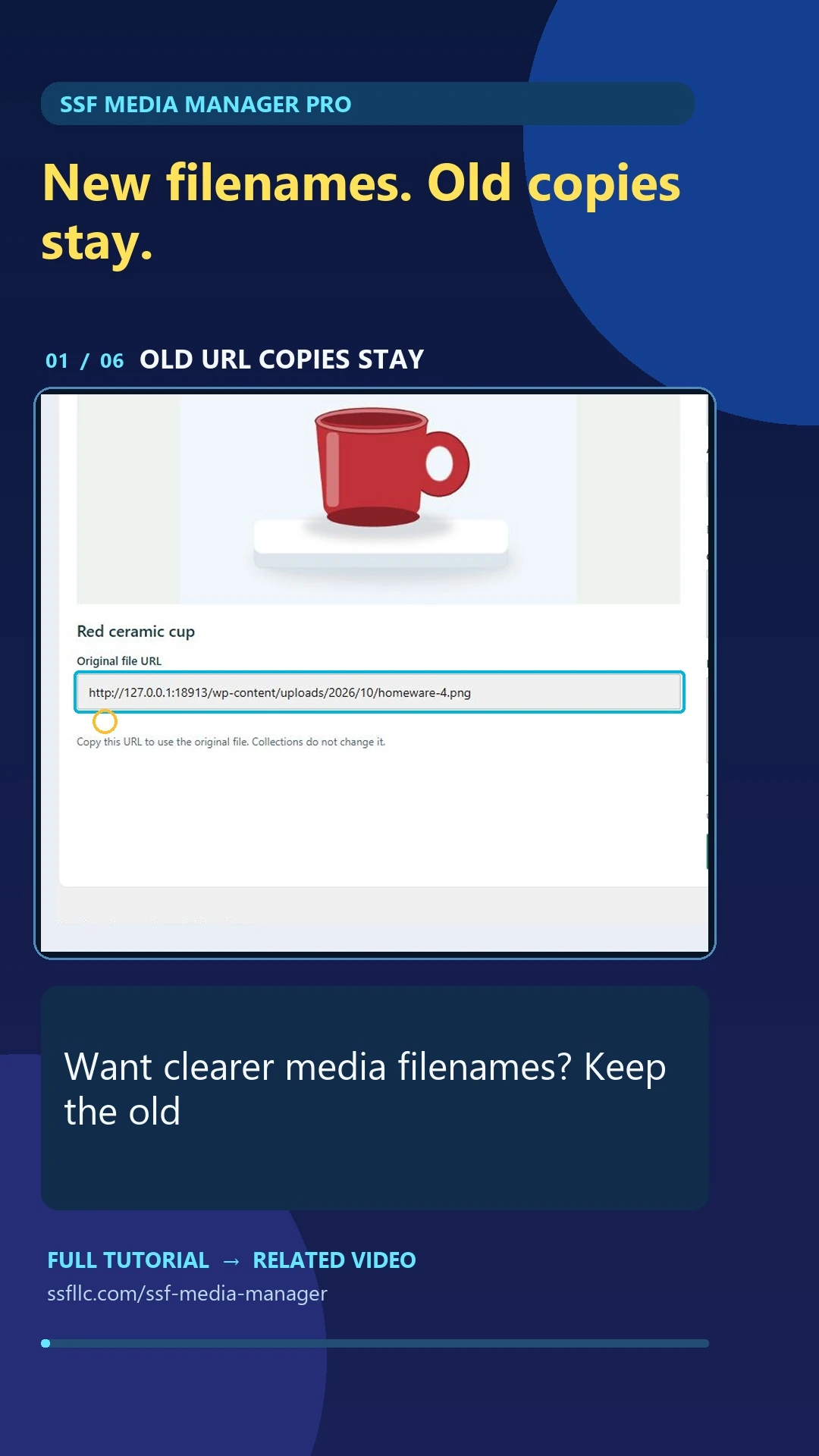
PRO SHORT
File renaming with old URL copies — Short
Preview new filenames, create verified copies and retain the old URL files. Copies use additional disk space; page content is not rewritten.
Watch on YouTube ↗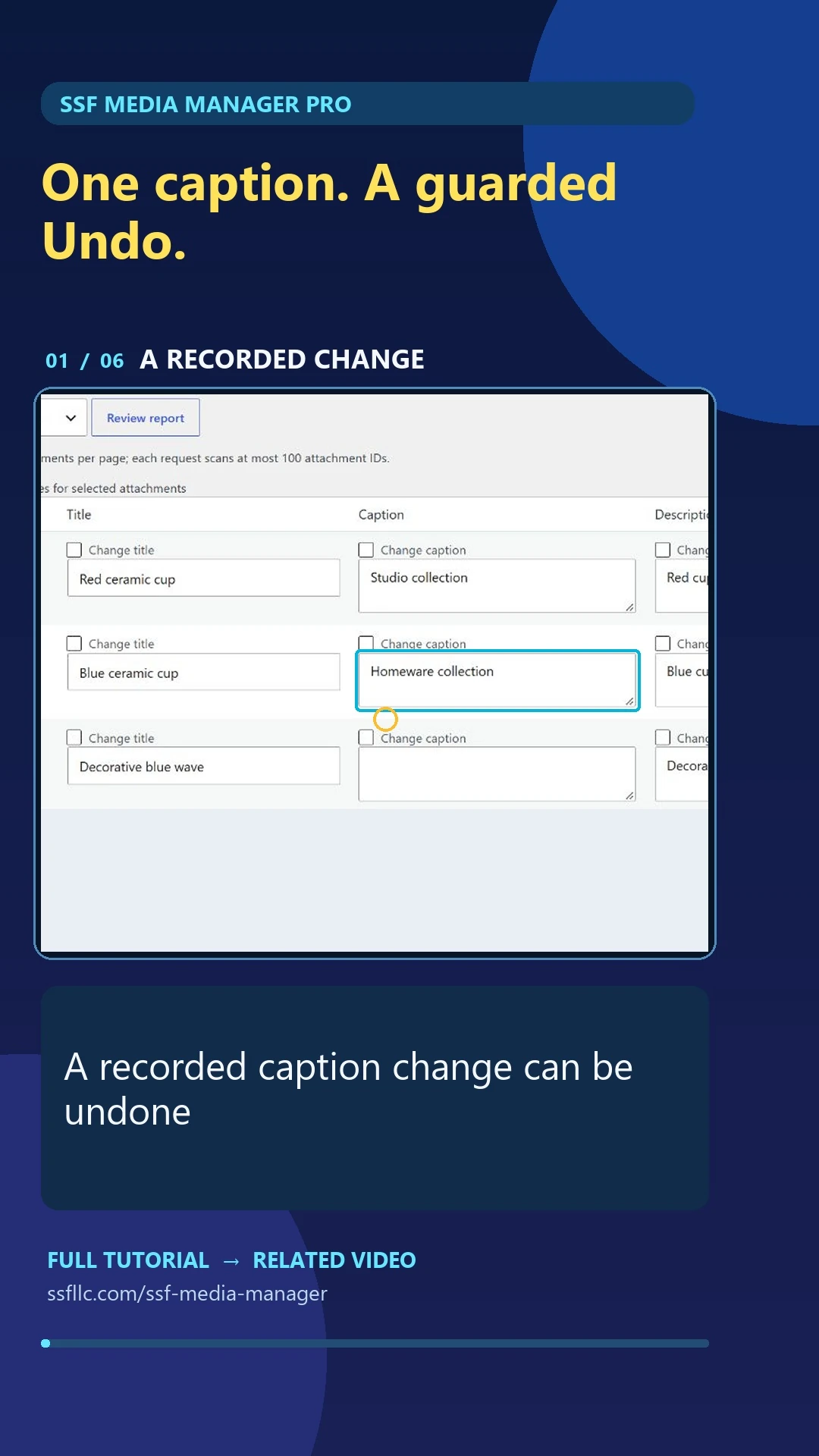
PRO SHORT
History and guarded undo — Short
Review a completed operation and restore recorded fields when the current state still matches. Later changes can block undo.
Watch on YouTube ↗Media Manager on Facebook
Practical updates from the dedicated SSF Media Manager Page.
FREE
Give your WordPress media a clearer home.
A short introduction to Free virtual collections, multiple memberships, search and attachment details.
Open the Facebook post ↗FREE
One image. More than one collection.
One original upload can belong to more than one virtual collection without another upload or a changed file URL.
Open the Facebook Reel ↗FREE
Find the file. Refine the details.
Find an attachment with search and filters, then edit its title, alt text, caption and description. Existing page blocks may need separate updates.
Open the Facebook Reel ↗PRO
Save your filters. Reopen the view.
Save and reopen a personal combination of search, collection and media-type filters with the separate Pro add-on.
Open the Facebook Reel ↗