

WordPress plugins · Customer Communication
SSF Chat Connect
A clear path from your website to a useful WhatsApp conversation.
Free includes a contact button and an optional product enquiry basket: collect products, variations and quantities, then review, edit or copy the message before opening one WhatsApp business number. The separate Pro add-on adds department choices, routing and optional local follow-up tools.
Click to Chat Button & Product Enquiries · Independently developed by Smart Solutions Framework.
Install the Free plugin
Download Free 0.2.0 from WordPress.org; no email signup or payment is required. Requires WordPress 6.4 or newer and PHP 8.1 or newer.
In WordPress, open Plugins > Add New > Upload Plugin, choose the ZIP, click Install Now, then Activate. Open Settings > SSF Chat Connect to enter your own WhatsApp number and message. Save, preview and test the destination before enabling the button. Keep a current site backup and check for another chat button before enabling a second widget.
Free 0.2.0 is hosted in the official WordPress Plugin Directory. You can also install it through Plugins > Add New by searching for SSF Chat Connect.
Simple for your visitors
Choose. Review. Start the conversation.
The website prepares the context. Your visitor stays in control of what they send.
Open your contact button
Free opens one configured WhatsApp number. Pro can show choices such as Sales, Support and Product Enquiries behind the same button.
Keep the useful details
Free 0.2.0 includes page context and an optional basket with supported WooCommerce products, variations, SKU and quantities. Page/post item shortcodes also work without WooCommerce. Visitors review the message before continuing.
Send in WhatsApp
Your visitor reviews the prepared message in WhatsApp and presses Send. Your team replies using its usual WhatsApp or WhatsApp Business account.
Learn by following the actual workflow
See SSF Chat Connect in action
Follow the settings, watch the saved website result and choose the workflow your visitors need.
Free and Pro are clearly labelled throughout the guides.
 Watch tutorial ↗
Complete walkthrough
Follow the full setup from a contact button to reviewed enquiry workflows.
Open this guide on YouTube ↗Watch on this page
 Watch tutorial ↗
Start with a clear contact button
Set your number and page message, choose appearance and add an inline button.
Open this guide on YouTube ↗Watch on this page
 Watch tutorial ↗
Build a more useful enquiry flow
Add department choice, routing, product context and optional local follow-up tools.
Open this guide on YouTube ↗Watch on this page
These earlier tutorials show Free 0.1.0 and Pro 0.1.0 workflows using fictional demonstration details and synthetic commentary. Free 0.2.0 now also includes a single-contact enquiry basket, message review and weekly hours. The current Pro 0.1.1 customer package also includes updates and support licence administration. Compare Free and Pro features, download Free or choose a Pro site plan below. The visitor reviews and sends the message in WhatsApp.
Explore focused workflow clips
Free contact tools



Pro enquiry workflows







Choose the right workflow
A useful Free enquiry basket.
Pro tools for departments and follow-up.
Pro is a separate add-on that requires Free. Click a feature to open a quick explanation. Explore the detailed feature cards below for more examples.
| Feature | Free | Pro add-on |
|---|---|---|
WhatsApp button & inline shortcodeAdd a floating button or place the same contact button within your page using a shortcode. Full explanation ↓ | Included | Included with Free |
Label, colour, position & device visibilityChoose your button label, colour, corner position and visibility on mobile, desktop or both. Full explanation ↓ | Included | Included with Free |
Prepared page title & linkPrepare a message with the current public page title and link so visitors can explain what they need. Full explanation ↓ | Included | Included with Free |
Contact destinations & departmentsLet visitors choose a department before opening its WhatsApp destination; existing chats are not transferred. Full explanation ↓ | One number | Up to 100 configured contacts |
Schedules, holidays & fallback contactsShow the appropriate contact for your configured hours, holidays and away periods. Full explanation ↓ | Weekly/overnight hours + away message | Included |
Page, product & destination rulesChoose the contact through saved rules for page, product, category, language or a visitor-selected destination. Full explanation ↓ | — | Included |
WooCommerce product enquiries & basketBuild a reviewed enquiry containing product, variation, SKU and quantity details for up to 20 distinct entries. Full explanation ↓ | Reviewed basket: products, variations, SKU and quantities | Product details + reviewed enquiry list |
Enquiry form & message reviewCollect relevant enquiry details with consent and let the visitor review the prepared message. Full explanation ↓ | Basket message review, editing and copy | Included |
Optional records, CSV & local reportsEnable local records and follow-up tools when needed; reports count clicks and forms, not WhatsApp delivery or sales. Full explanation ↓ | — | Included |
Configuration export & optional notificationsMove private settings between setups and optionally connect your chosen email or HTTPS webhook destination. Full explanation ↓ | — | Included |
Departments are choices before a chat starts. Each can use the same number or a different authorised number. Current Pro does not transfer an ongoing WhatsApp conversation between staff accounts.
Click to explore
What each feature does for your business.
Open a feature for a practical example and the details that matter before you choose.
Free · A contact button that fits your website
Choose the label, colour and bottom-left or bottom-right position. Show it on mobile, desktop or both. Use [ssf_chat_connect] to place the same button inside a page.
Free includes number validation, a local preview and a destination test link. Add a number your business controls, check the destination, then enable the button.
Free · Useful page context in the prepared message
A prepared message can include your site name, the current page title and its public link. For example: “Hello, I would like to ask about this product: [page title] [page link].”
The visitor can review and edit the message in WhatsApp. A link click alone does not show that a message was sent, delivered or read.
Pro · One button, clear department choices
Let visitors choose Sales, Support, Product Enquiries or your own department names. Configure up to 100 contact entries, each with its destination and prepared message.
Several departments can use one number with different enquiry labels, or separate business-owned numbers. Contact entries are destinations, not hosted staff seats. Replies stay in the selected WhatsApp account.
Pro · Hours, holidays and fallback contacts
Set contact time zones, weekly hours, split shifts, overnight periods and holidays. Choose how to handle away periods and use a fallback contact when appropriate.
For example, show Sales during its working hours and direct an after-hours enquiry to your chosen alternative. Scheduled availability describes your settings; it does not detect whether someone is online in WhatsApp.
Pro · Send the right enquiry to the right destination
Use saved rules for a page, product, category, exact language or visitor-selected country/region. The first matching rule chooses the applicable contact. A routing inspector explains the saved rule that matched.
For example, route a product category to its sales contact. A visitor-selected destination is a choice the visitor makes, not an automatic location-tracking claim.
Pro · Product details and a multi-product enquiry list
On supported WooCommerce product pages, include the product, selected variation, SKU and quantity. A visitor can collect several products, then review the enquiry before continuing.
The basket supports up to 20 distinct product/variation entries per enquiry, with quantities of 1–999 each. This is a batch limit, not a limit on your product catalogue. It prepares an enquiry; it does not place an order, calculate shipping or confirm a quotation.
Pro · A form visitors can review before sending
Choose which name, email, country and message fields appear and which are required. Visitors can add relevant details, consent and inspect the prepared enquiry before choosing their contact.
Useful for collecting a destination country or product requirements without asking the visitor to retype the product context. Optional enquiry storage is separate and starts off.
Pro · Optional follow-up records, CSV and reports
If you enable local storage with the appropriate privacy notice and consent, review enquiry records, update manual follow-up statuses, export up to 500 recent enquiries per CSV export, and use retention and privacy export/erasure tools.
Optional local reports cover contact clicks and confirmed form submissions over a 90-day window. They do not establish WhatsApp delivery, replies, orders or sales. Storage and reporting start disabled.
Pro · Settings export and optional notifications
Export or import private configuration to help manage your site setup. Imported settings start disabled for review.
Optional email notifications and an administrator-configured HTTPS webhook can connect an enquiry workflow to your own tools. These start off and may require services you arrange separately. They are not an included SSF cloud inbox or automatic WhatsApp sender.
Free & Pro · Clear choices about visitor data
Free stores its settings on your WordPress site and does not collect visitor messages or load remote tracking scripts or fonts. WhatsApp receives the destination and prepared message when the visitor follows its link.
Pro’s optional storage, reports, email and webhooks start disabled. Enable only what your business needs and explain the processing in your site’s privacy information. WhatsApp operates under its own terms and privacy policy.
SSF Chat Connect Pro · Google NMT demo
Translate website questions before WhatsApp
Type a question, compare the translation and review what you want to send. See the WhatsApp us workflow with English commentary, readable captions and clear close-ups.
Earlier Google NMT tutorials: these recordings show the Pro 0.1.3 website-enquiry workflow. The Translation Desk walkthrough below shows SSF’s configured Pro 0.1.9 owner pilot. The current customer download remains Pro 0.1.1; the demonstrated translation modules are separate from that download. Released features, prices, checkout and licence terms remain unchanged.
- Compare your original question with a Google translation.
- Translate manually, or opt into a preview after a typing pause.
- Choose message languages separately from the interface controls shown in that earlier recording.
- Review the original, translation or both—and keep original-only when preferred.
Google Cloud usage is billed separately. The website owner connects the service, and the visitor agrees before text is sent for translation. Each changed question can use more. Review important wording with someone who knows both languages.
Full walkthrough
Translate, compare and review before WhatsApp
English to Spanish, optional Spanish-to-Arabic translation, and a genuine WhatsApp Web draft typed manually and left unsent.
Watch on YouTubeThree quick lessons
Short lesson 1
Type, pause and translate
English to Portuguese (Portugal), with an optional preview after typing.
Watch Short
Short lesson 2
Languages and interface labels
Arabic controls, French/Portuguese choices, and the recorded message-language catalog.
Watch Short
Short lesson 3
Keep the original question
Review your question without making a Google translation request.
Watch ShortOpen the translation demo playlist
Privacy, language choices and usage details
These earlier recordings use demonstration information and the separate Free and Pro WordPress plugins. Their 23 October 2026 project check offered 192 Google NMT message choices. The current Translation Desk uses English interface controls and the installation’s verified Google message catalogue. Availability can change, and selected examples do not prove every language pair is fluent.
Google receives the text and selected languages after consent. Recognized identifier patterns are replaced, but this is not anonymization and can miss private information. Google setup and usage are billed separately; no unlimited translation, API credits, hosting or managed service is included.
The demo’s safety counter is not a monthly allowance, invoice balance or Google-account-wide spending cap. An uncertain request can retain its debit and is not automatically retried. The original-only route remains available.
These earlier lessons cover website message preparation before WhatsApp. The newer Translation Desk lesson below covers messages the operator manually copies from WhatsApp Web. Neither workflow automatically reads WhatsApp chats or presses Send. The earlier Web example is manually typed and unsent; a preview or click does not prove delivery or a sale.
Independent SSF software. WhatsApp, Meta and Google names/images identify compatible services, without implying endorsement.
SSF Chat Connect Pro · Translation Desk workflow preview
Translate WhatsApp messages. Keep the lead and history.
Follow a real WhatsApp Web workflow alongside SSF’s private WordPress Translation Desk: understand a received message in English, prepare a reviewed reply in the customer’s confirmed language, then save the lead and its TXT or PDF history.
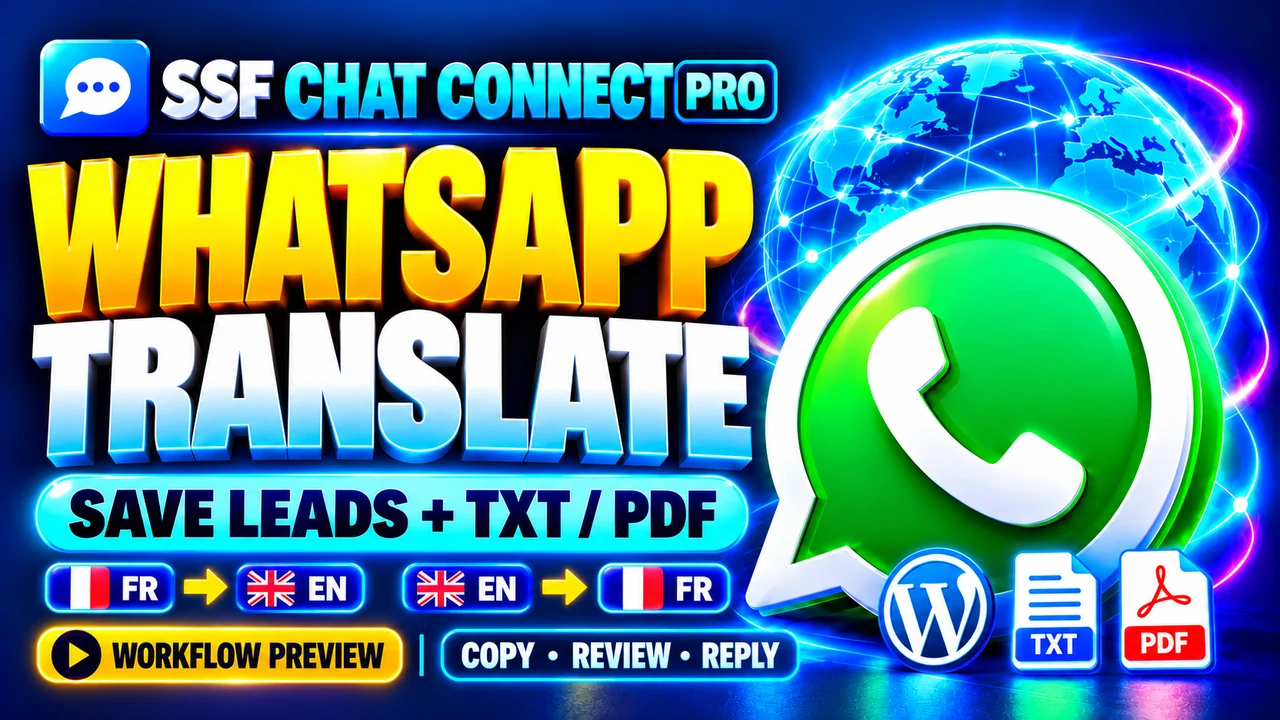
Watch step by step: WhatsApp Web → English translation → reviewed reply → saved lead → TXT / Print / Save PDF.
Watch the Translation Desk tutorial on this page
A practical conversation workflow
- Copy the message you want to understandRead the received message in WhatsApp Web and copy only the text needed for the enquiry. Open WordPress → Tools → SSF Translation Desk. The operator controls what is copied.
- Translate the received message into EnglishSelect the customer’s message language, review the Google processing notice and translate. Compare the original and result, edit the reviewed wording if needed, then explicitly save the received message.
- Prepare a reply in the customer’s languageWrite the reply in English, translate into the confirmed language and review the result. Save the reviewed reply as a draft, then copy it into WhatsApp Web. Review it there and press Send yourself when ready.
- Save the lead details that matterRecord the name and contact details you have permission to keep, product requirements, stage, assignment, follow-up date and private notes. Click Save; translation previews are not automatically stored as lead messages.
- Resolve and export a history versionChoose Resolve to preserve a numbered version of the saved history. Download TXT for Notepad, or open Print / Save PDF and choose Chrome’s Save as PDF. Keep exports in your own protected storage.
- Continue without losing the earlier versionReopen the lead for further work and resolve again when appropriate. The earlier resolved version remains available. The history contains the messages you explicitly saved, rather than an automatic full WhatsApp archive.
Clear review, useful records
- English interface controls with message choices from the installation’s currently verified Google NMT catalogue. Language availability can change; important translations need fluent review.
- Original text, raw Google output and separately reviewed wording remain distinguishable in saved history.
- Private lead stages, descriptive assignments, follow-up dates and internal notes. All WordPress administrators on the same site can access the Desk; assignment is not a staff-access boundary.
- Original-only records remain useful when translation is unavailable or you do not choose Google processing.
- No Meta API connection is required for this manual workflow. WhatsApp Web and the private WordPress Desk remain separate tools.
What this walkthrough shows
The recording demonstrates SSF’s configured Translation Desk owner pilot in Pro 0.1.9. The current customer package listed for purchase is Pro 0.1.1, covering the released department, routing and enquiry workflows. The Desk and Google translation module shown here are separate from that current customer download; this tutorial does not change its purchase entitlement.
Ask about current Translation Desk availability, or review the existing Pro plans. The separate Free contact button remains US$0.
Existing Pro plans · proposed module inclusion
Proposed inclusion in the existing Pro plans
No additional SSF language-module fee is proposed within these existing update/support plans. This is a module-inclusion proposal, not a new released add-on purchase or an included Google usage allowance.
Pro · 1 activation
US$39
One payment for one separate WordPress update/support activation.
Pro · up to 5 activations
US$99
One payment for up to five separate WordPress update/support activations.
Pro · up to 20 activations
US$199
One payment for up to twenty separate WordPress update/support activations.
All activations share one year of updates/support from order/licence creation. Manual renewal; no automatic renewal. Installed local tools continue afterward. Google Cloud setup and usage, hosting and any external service costs remain separate. Existing Pro terms, purchase links and customer download remain unchanged.
Only selected text and language choices are sent to Google after processing consent. Avoid unnecessary sensitive information. Saved history and downloaded exports require appropriate access, retention and backup handling. Independent SSF software; WhatsApp, Meta and Google names identify compatible services without implying endorsement.
Pro plans · one-time purchase
One Pro toolkit.
The site allowance you need.
Start with Free for one contact destination. Add Pro for departments, schedules, routing and reviewed product enquiries. Each Pro plan includes the same tools and one shared year of updates and support. Manual renewal; no automatic renewal.
Download and install: get Free from WordPress.org. A Pro purchase supplies the Pro ZIP and guide through your secure customer receipt. Install Free first, then Pro, and keep both plugins active.
For one website
Pro · 1 site
US$39 one payment
One active separate WordPress installation.
- Departments, schedules and routing
- Reviewed forms and product enquiry basket
- Optional local records, reports and notifications
- One year of updates and support
For a small portfolio
Pro · 5 sites
US$99 one payment
Up to five active separate WordPress installations.
- The same complete Pro tools on each site
- Separate configuration for each installation
- All slots share one update/support year
- Manual renewal; no automatic renewal
For more client websites
Pro · 20 sites
US$199 one payment
Up to twenty active separate WordPress installations.
- The same complete Pro tools on each site
- For a portfolio of separate sites
- All slots share one update/support year
- Cloud workspaces and hosted seats excluded
Free remains US$0. Get Free 0.2.0 on WordPress.org ↗ with no email signup or payment. Install Free and Pro as separate plugins.
Purchase, licensing and delivery explained
One payment covers your chosen active-site allowance and one shared year of updates/support from order/licence creation. A later site activation does not restart the year. No subscription or automatic renewal applies.
Site activation records update/support entitlement. Installed local Pro tools keep working after the year and during a licensing-service or network outage. Renewal is optional for further updates/support. A staged/development installation uses a slot if activated; network-wide multisite is outside the verified support scope.
The purchased Pro ZIP and customer installation guide are supplied through your secure Lemon Squeezy receipt. Download the separate Free dependency from WordPress.org, without email signup or payment. Released eligible updates are supplied manually after purchase/entitlement review; no automatic updater or guaranteed release schedule is included. Expiry is not represented as mechanically blocking receipt downloads.
Website allowances count separate installations, not people, phone numbers, hosted inbox seats or message quotas. Applicable taxes and the final total appear at checkout. Read the complete Chat Connect Pro terms before buying.
Before you choose
Helpful answers.
Is a paid WhatsApp API account needed for Free or local Pro?
The current plugins prepare contact links to a normal WhatsApp or WhatsApp Business number. They do not require an SSF cloud subscription or a paid WhatsApp API account. WhatsApp’s own service terms and ordinary connectivity costs apply.
Can visitors move from Sales to Support?
They can choose a different department before starting the chat. If departments use different numbers, the selected number opens in WhatsApp. Pro does not transfer an ongoing conversation between accounts or provide a shared inbox.
Can I download Free or buy Pro now?
Download SSF Chat Connect Free 0.2.0 from WordPress.org, without an email signup or payment. Install it manually through Plugins > Add New > Upload Plugin, then configure and test your destination before enabling the button.
Pro 0.1.1 adds departments, schedules, routing and reviewed product enquiries. Choose your site plan above to purchase through Lemon Squeezy. Purchased Pro files and the installation guide are supplied through the secure customer receipt; Free is a separate WordPress.org download and must be installed first.
What WordPress setup is required?
The plugins require WordPress 6.4 or newer and PHP 8.1 or newer. Pro requires the separate Free plugin. Product, variation and enquiry-basket tools require a supported WooCommerce setup. Check compatibility and your site’s backups before installation. Network-wide multisite is outside the verified support scope.
Does this plugin guarantee replies or more sales?
It helps visitors prepare and start relevant conversations. Your team’s availability, replies and service determine what happens next. A button click or submitted form does not prove a message was sent or a sale happened.
Want to discuss your website’s enquiry flow?
Tell us about your products, departments and website count. We can explain the Free and Pro workflows, site plans and installation details.